How to Block iOS 26 Updates on iPhone (2026 Guide)
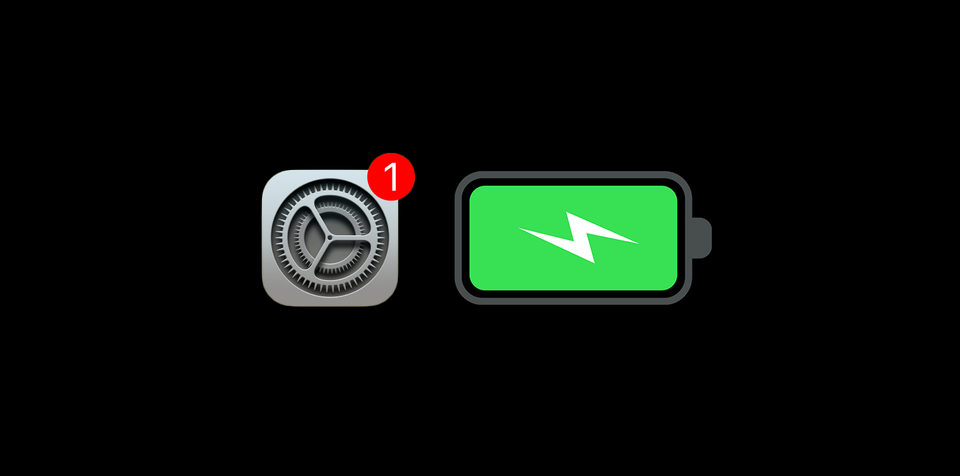
Apple officially released iOS 26 on September 16. While many are rushing to update, some users prefer to stay on their current version for stability or specific app compatibility. If you want to stop those persistent "Software Update" notifications and red badges in Settings, here is the most reliable method.
The Method: How It Works
The trick is to install a tvOS 26 Beta Configuration Profile.
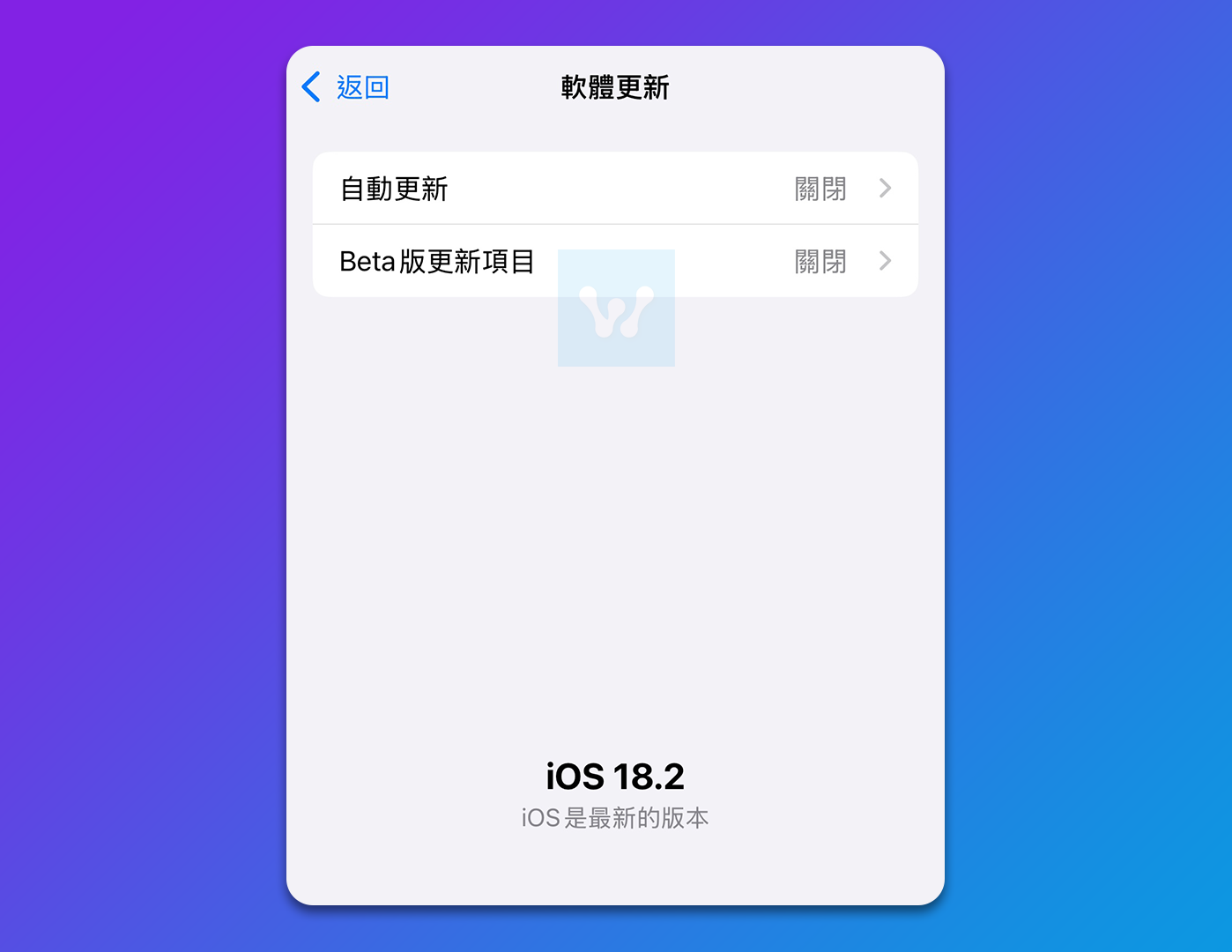
- The Logic: By installing this official Apple profile, your iPhone will look for tvOS updates instead of iOS updates. Since your iPhone isn't a TV, it will simply report that "iOS is up to date."
- Safe & Official: This profile comes directly from Apple’s servers, so it is safe to use and won't harm your device.
Step-by-Step Installation
Note: You must perform these steps using the Safari browser.
- Download: Open the tvOS 26 Profile link in Safari and tap Allow.
- Access Settings: Go to your iPhone Settings.
- Profile Downloaded: Tap the "Profile Downloaded" banner near the top (or go to General > VPN & Device Management).
- Install: Tap Install in the top-right corner, enter your passcode, and confirm.
- Restart: Your iPhone will prompt a restart to apply the changes.
Once rebooted, your "Software Update" section will no longer show iOS 26; it will state that your software is current.
How to Restore Updates (Unblock)
If you change your mind and want to update to iOS 26 later, the process is simple:
- Navigate to Settings > General.
- Tap VPN & Device Management.
- Select the tvOS 26 Beta Software Profile.
- Tap Remove Profile and restart your phone.
Your iPhone will immediately recognize the latest iOS 26 update again.